Full app walkthrough and navigation
Now that your account is set up, let's take a quick tour of the app so you know where everything lives before we dive into the details.
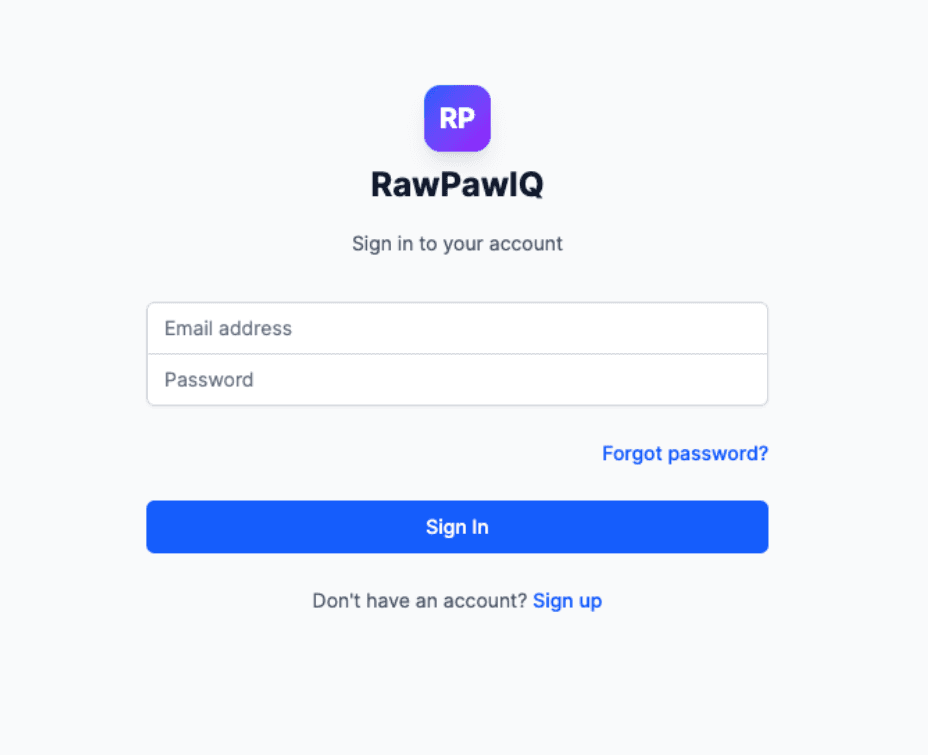
Sign in
Head to rawpawiq.com/login and enter your email and password to sign in.
The Launchpad — your starting point
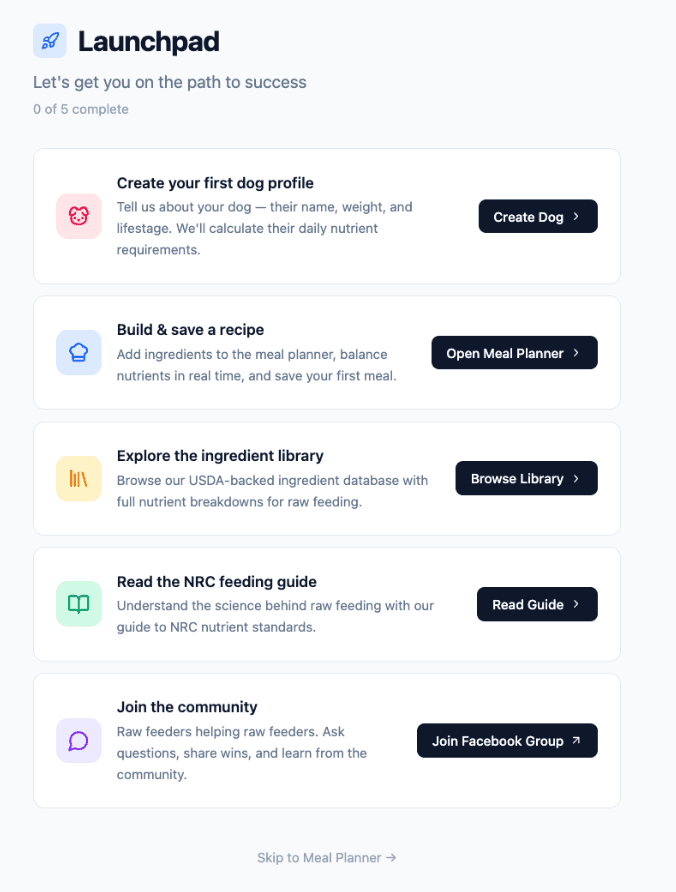
Once you're in, the first thing you'll see is the Launchpad. This is your starting point. It walks you through the key steps of getting set up, and it'll point you toward everything you need as a new user.
From here you can create your dog's profile, open the Meal Planner, browse the ingredient library, read the NRC Guide, and join the Raw Feeding 101 Facebook community. We'd recommend joining the community right away.
Main navigation
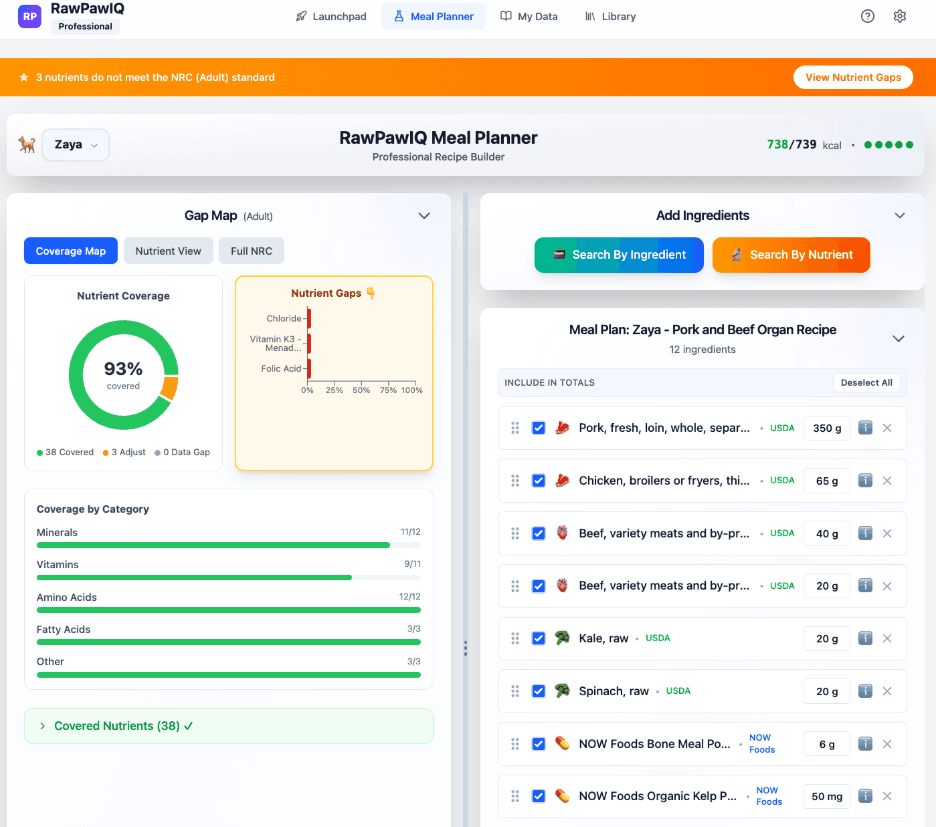
The main navigation runs across the top of the app. Here's a quick rundown of each area.
Meal Planner
Where you'll spend most of your time — build, log, and analyse meals. We'll cover this in depth in an upcoming tutorial.
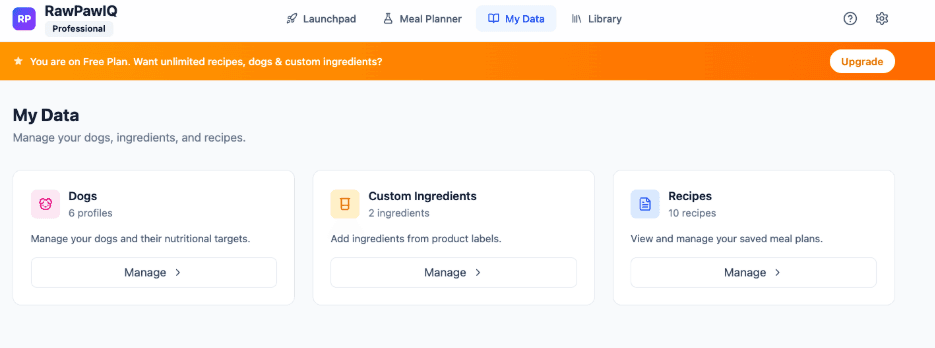
My Data
Your personal hub. This is where you'll find your dog profiles, any custom ingredients you've added, and your saved recipes, all in one place.
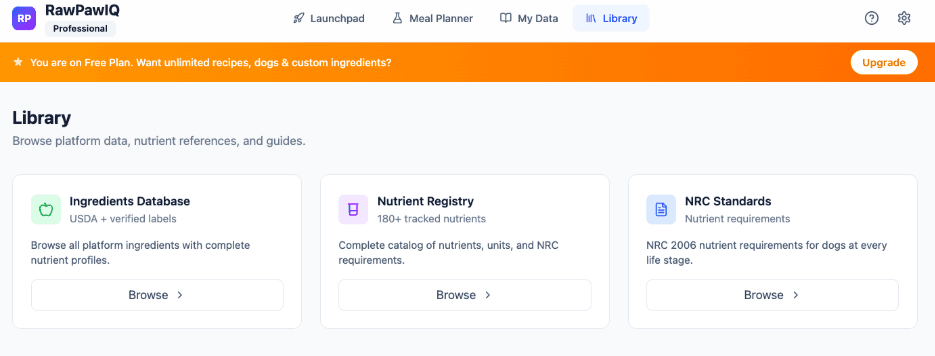
Library
Access to the ingredient database, the nutrient registry, and the NRC Standards. If you ever want to look something up or check a nutrient requirement, this is where to go.
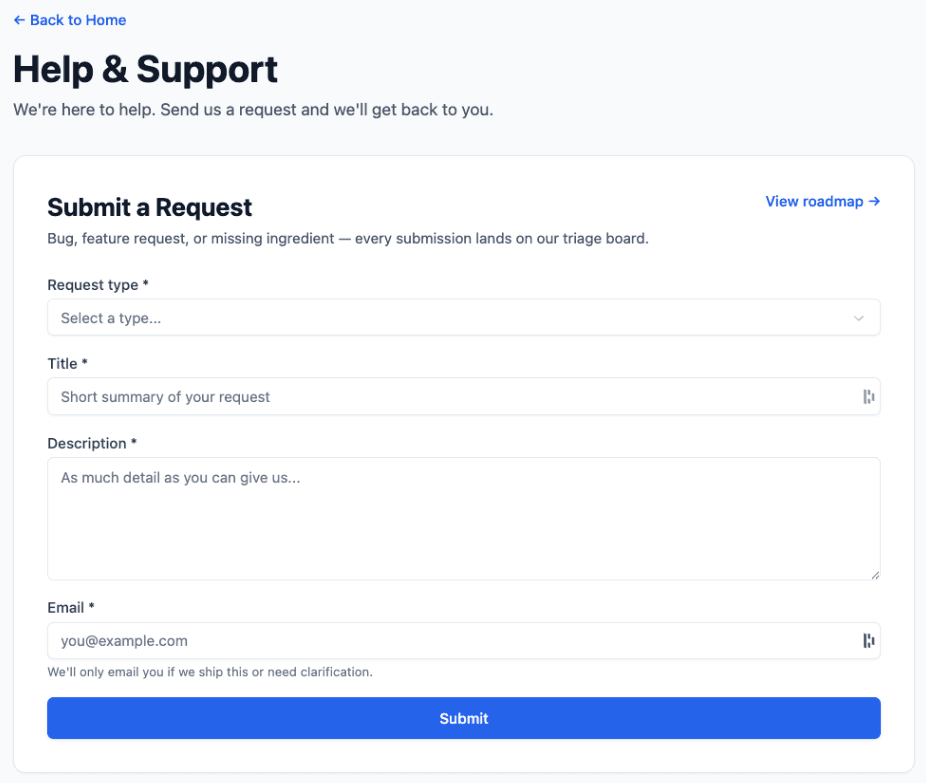
Support & Roadmap
In the top navigation you'll also find a question mark icon. Click that to reach the support area, where you can submit feature requests, suggest ingredients to add to the database, or report a bug. You can also check out the Roadmap from here to see what's being worked on and what's coming next.
Helpful links worth bookmarking
- Reference Manual — how RawPawIQ works
- NRC Standards — nutritional requirements
- Billing Policy — subscription and payment questions
- Contact Us — general inquiries
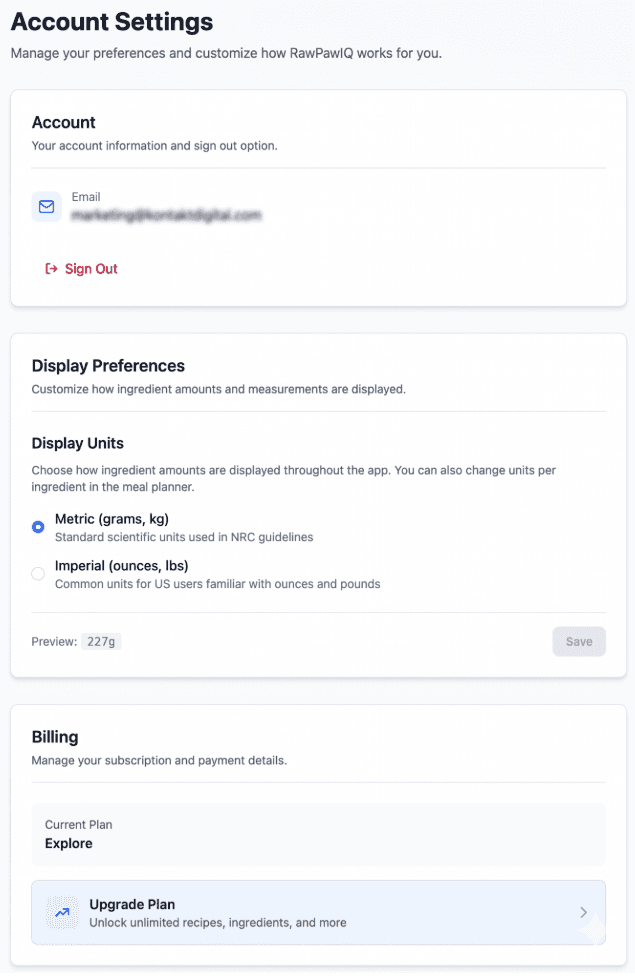
Account settings
The cogwheel icon in the top right takes you to your account settings. From there you can manage your display preferences, billing, and more. We'll touch on settings again as we go through the tutorials.