How to use the Nutrient Balance Engine
Before we get into the steps, it's worth taking a moment to understand what this feature actually does, because it's one of the things that makes RawPawIQ different from any other tool.
Most people who home prepare know when something is low. What they don't know is how to fix it without breaking something else. If you increase one ingredient to bring up a deficient nutrient, you might overshoot a different one. If you reduce something to bring down an excess, you might pull another nutrient below target.
The Nutrient Balance Engine solves this by showing you the exact impact of any change before you make it. It finds gaps, identifies sources, previews adjustments in real time, and flags when you're approaching a safe upper limit. It turns guesswork into decisions.
Load a saved recipe
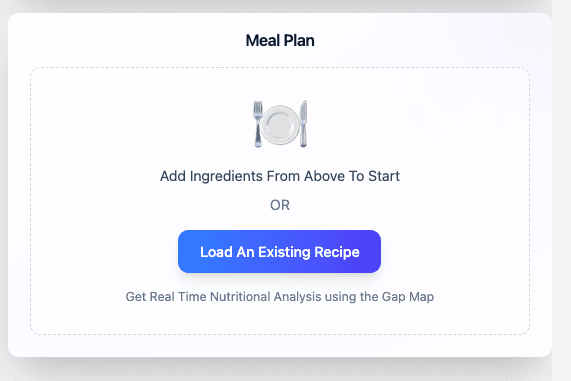
For this tutorial we'll load a previously saved recipe. In the Meal Plan area, click Load An Existing Recipe and select your recipe.
If you're already working on a recipe that's open in the Meal Planner, you can skip this step and go straight to the Gap Map.
Reading the Gap Map
With the recipe loaded, take a look at the Gap Map on the left. In this example, the recipe is sitting at 97% covered with just one nutrient still low — Manganese.
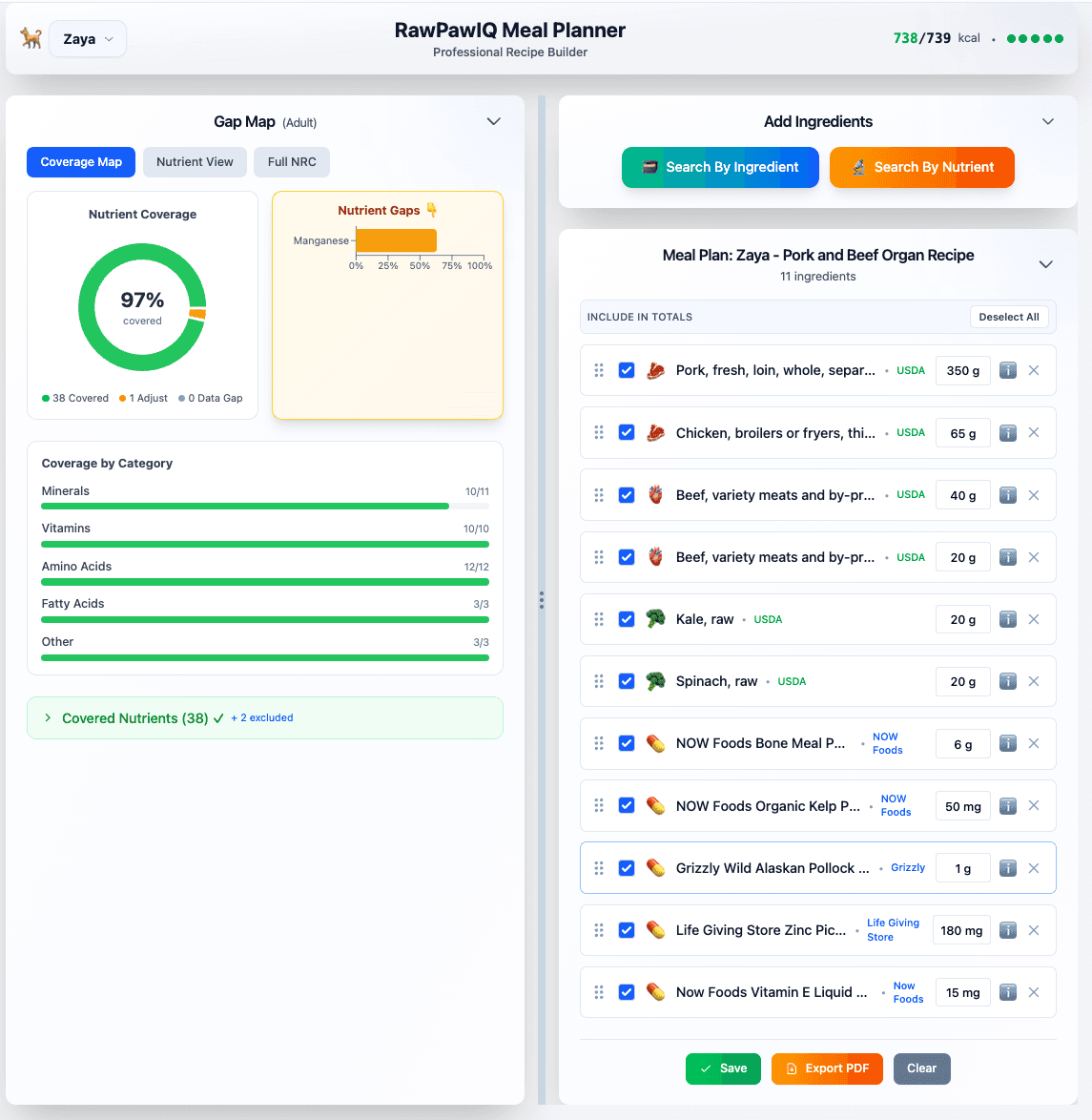
Click on Manganese in the Gap Map. You can do this from any of the three tabs — Coverage Map, Nutrient View, or Full NRC.
The Nutrient Balance Engine opens
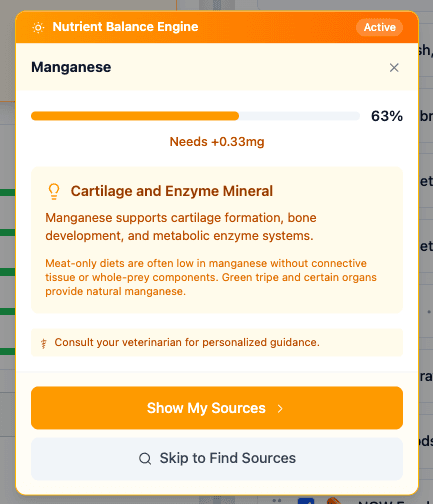
The panel that appears is the Nutrient Balance Engine. It tells you straight away: Manganese is at 63%, and the recipe needs +0.33 mg to hit the target.
It also gives you a brief note on what Manganese does and why meat-only diets can fall short. Hit Show My Sources to continue.
Option 1 — Edit existing ingredients
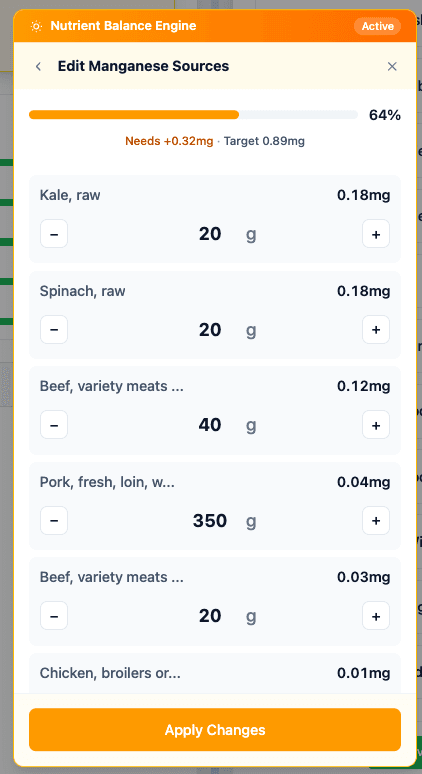
The next screen shows you every ingredient in your recipe that contributes Manganese, along with exactly how much each one is providing. You can see at a glance which ingredients are doing the heavy lifting.
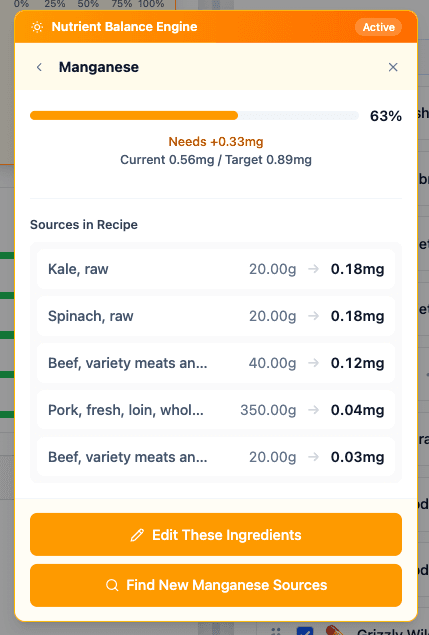
From here you can hit Edit These Ingredients and use the plus and minus controls to increase or decrease amounts. As you adjust, the percentage at the top updates live so you can see whether you're hitting the target.
Option 2 — Find new sources
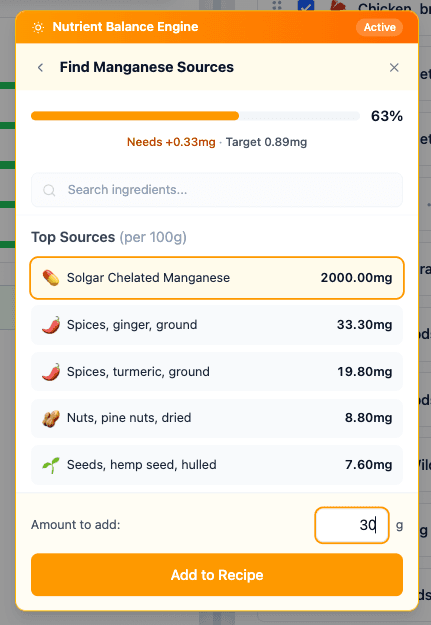
If you'd rather add a new ingredient than adjust what's already there, go back and hit Find New Manganese Sources. This shows you the top sources of Manganese ranked by how much they contain per 100g, so you're not just guessing at what to add.
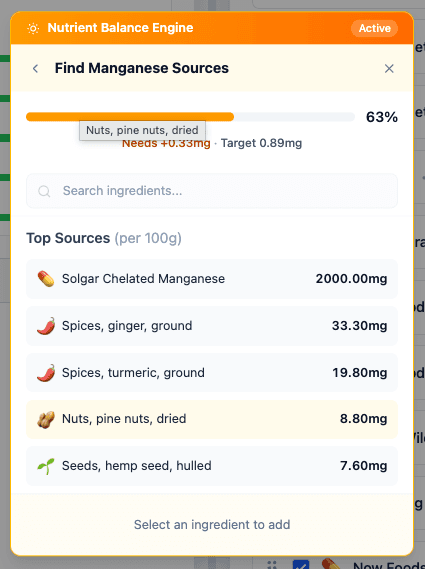
In this case, Solgar Chelated Manganese comes up first at 2000 mg per 100g. Select it, enter 30 mg as the amount, and hit Add to Recipe.
The result
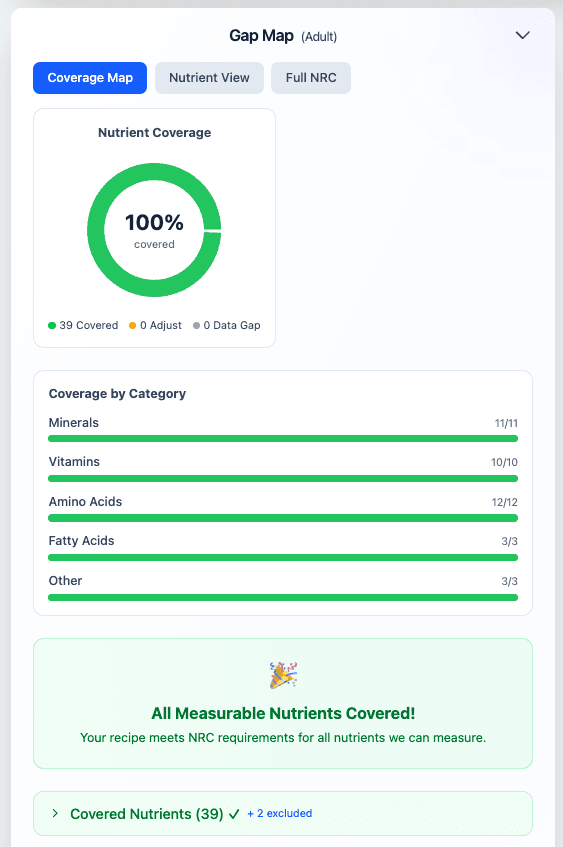
Look at the Gap Map now. The circle is fully green, the percentage reads 100%, and the panel at the bottom says:
All Measurable Nutrients Covered.
Your recipe meets NRC requirements for all nutrients we can measure.
You can use the Nutrient Balance Engine to work through any nutrient gap in your recipe, one by one, using the same process shown here.
Keep an eye on calories. Adding ingredients to hit nutritional targets will add calories to the recipe, and it's easy to lose track if you're adding several things at once. Use the calorie tracker at the top of the Meal Planner as your check to make sure the total stays in line with your dog's daily target.
Go deeper
Want to understand the science behind the coverage percentages, normalization, and why some gaps are expected? Head to the Reference Manual: