Adding custom liquid ingredients
The process for adding a liquid ingredient follows the same 5 steps as a dry ingredient, but the Serving step works a little differently. Because liquids are measured by volume, RawPawIQ needs one extra piece of information to do its job accurately.
We'll walk through this using Now Foods Vitamin E Liquid as the example.
Open the Custom Ingredients page
From the top navigation, click My Data,
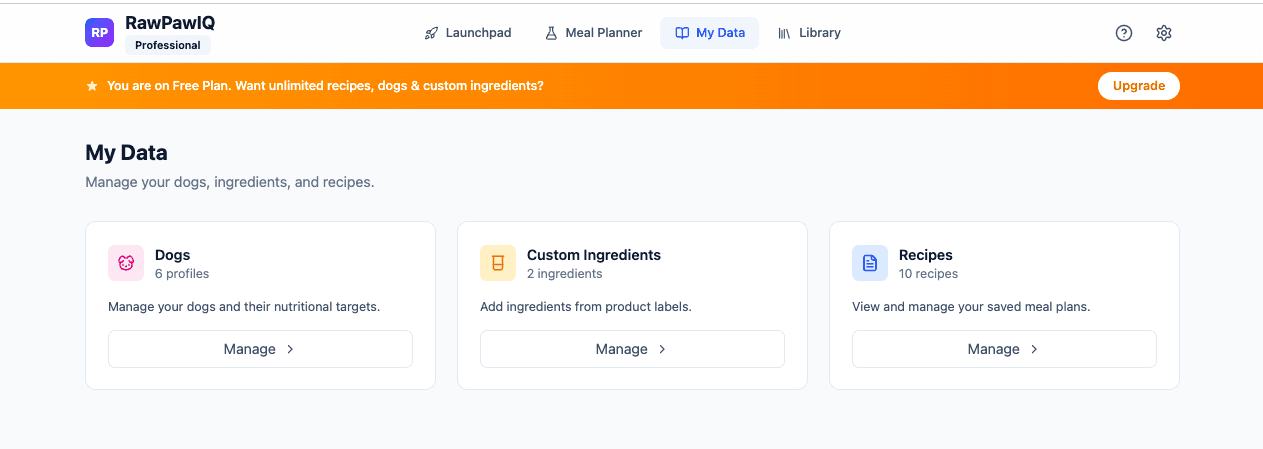
then Custom Ingredients, or go directly to rawpawiq.com/my-ingredients.
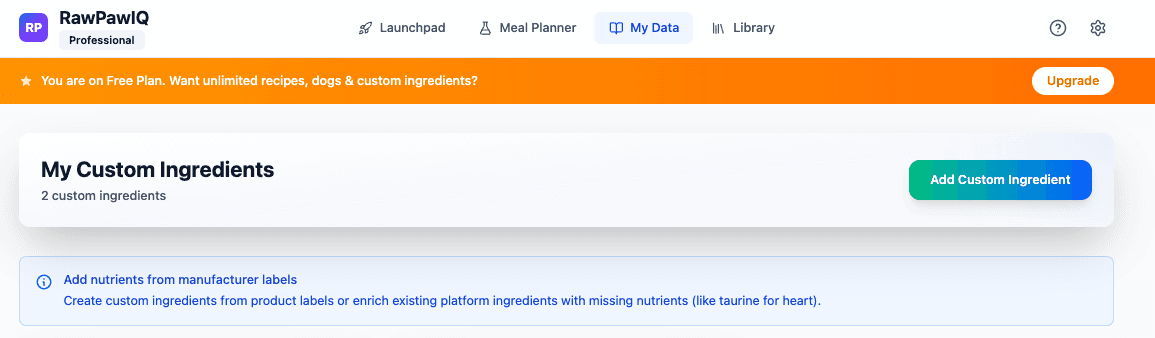
Click Add Custom Ingredient.
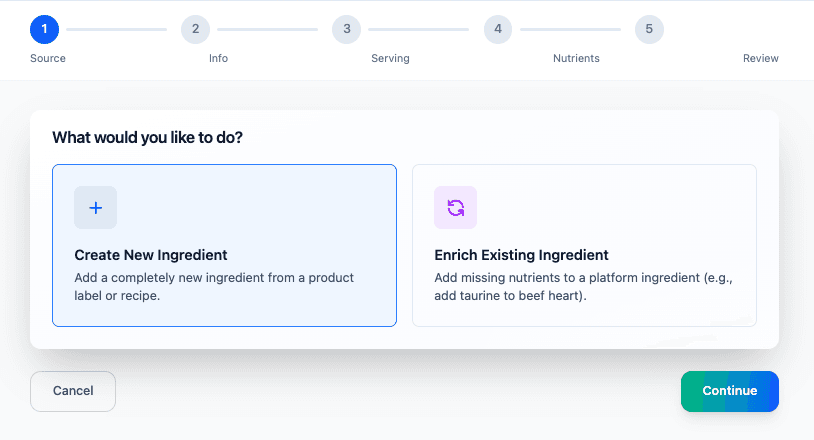
Step 1 — Source
Select Create New Ingredient and hit Continue.
Step 2 — Info
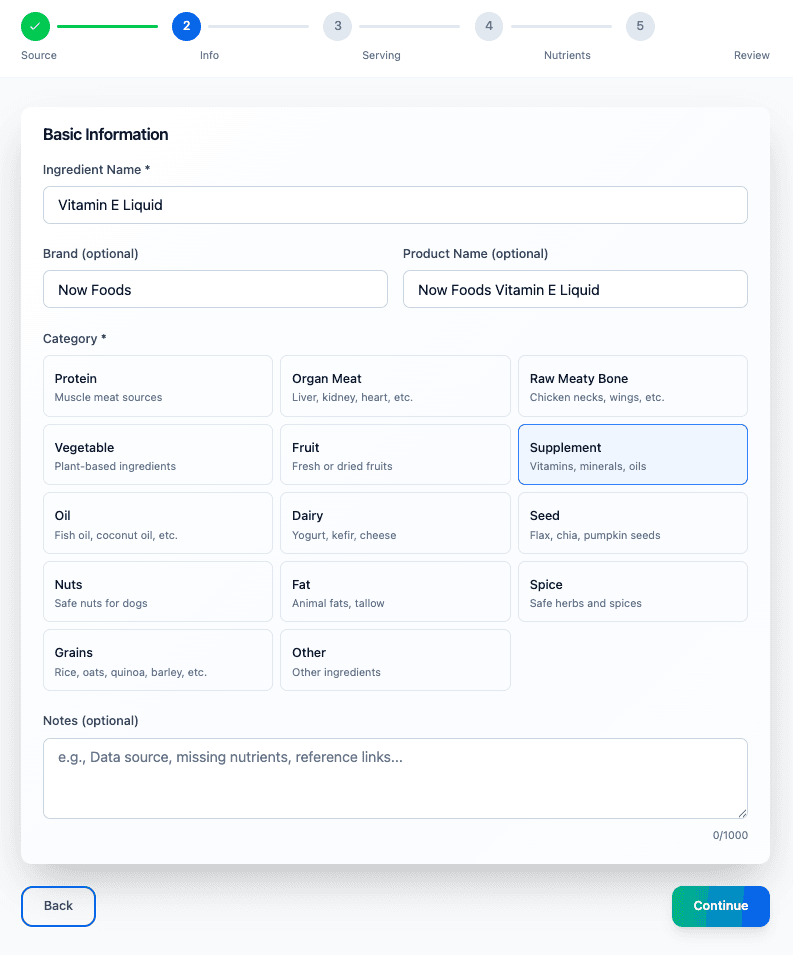
Fill in the details from the label:
- Ingredient Name — "Vitamin E Liquid"
- Brand — "Now Foods"
- Product Name — "Now Foods Vitamin E Liquid"
- Category — Supplement
- Notes — optional
Hit Continue.
Step 3 — Serving (the important one for liquids)
This is where liquid ingredients differ from dry ones. Pull out your product label.
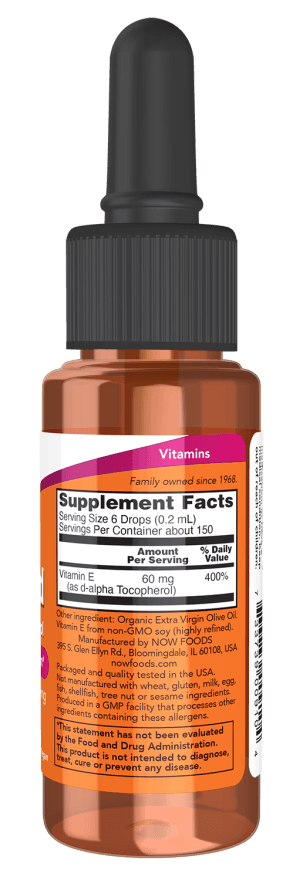
The label shows: Serving Size 6 Drops (0.2 mL). Enter the following:
- Serving Size — 0.2
- Serving Unit — milliliters (mL)
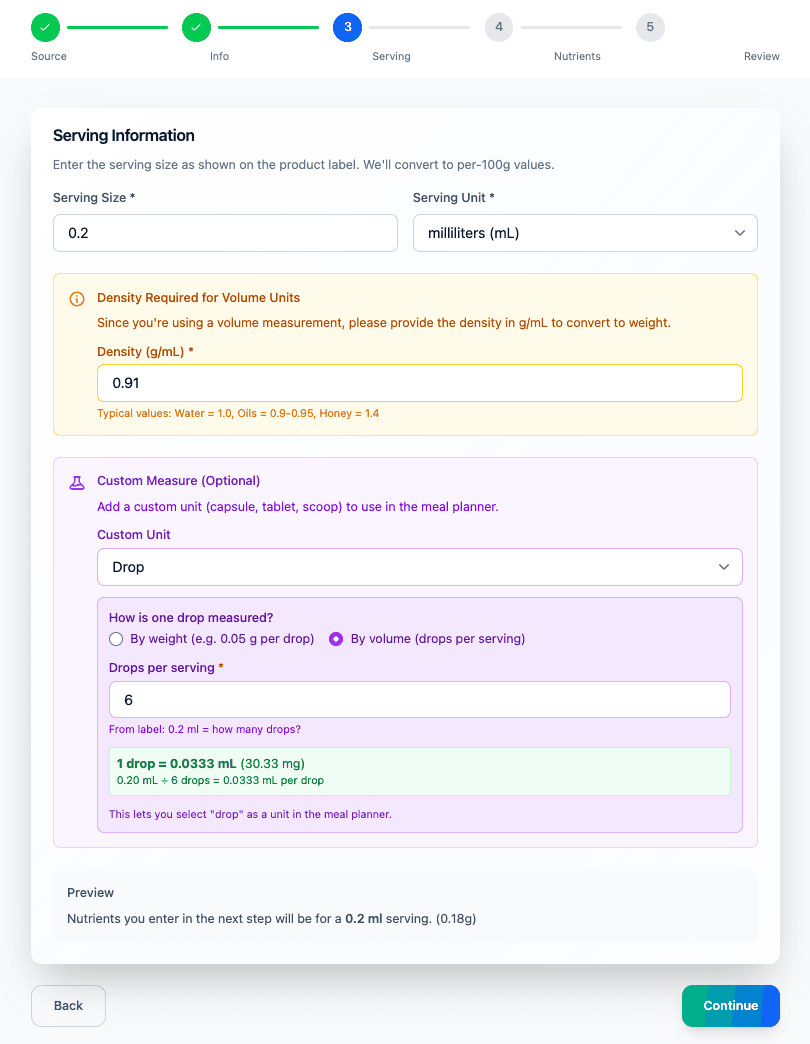
Under Custom Measure, set the Custom Unit to Drop, then select By volume (drops per serving) and enter 6 in the Drops per serving field.
RawPawIQ will calculate this automatically: 1 drop = 0.0333 mL (30.33 mg). This means when you're building a meal, you can add drops directly instead of working in milliliters.
The preview at the bottom will confirm: Nutrients you enter in the next step will be for a 0.2 ml serving (0.18g).
Step 4 — Nutrients
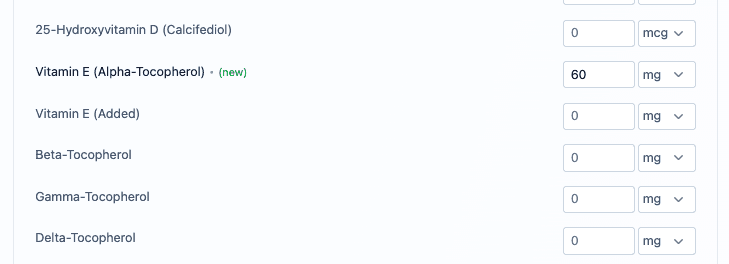
From the label: Vitamin E: 60 mg per serving. Open the Fat-Soluble Vitamin section and enter 60 in the Vitamin E (Alpha-Tocopherol) field.
Only enter what's on the label and leave everything else at 0. Hit Continue.
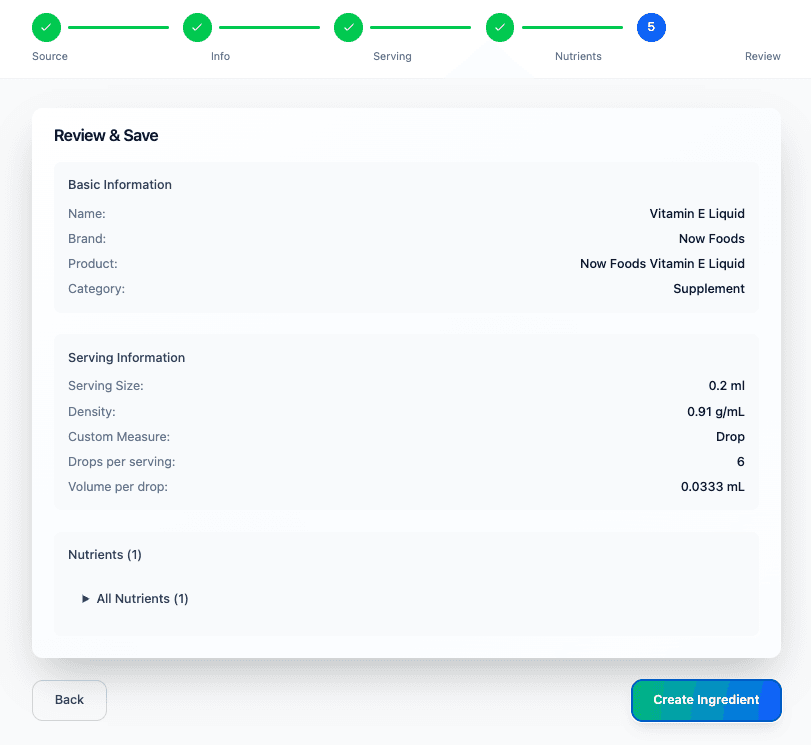
Step 5 — Review
Check your summary. You should see:
- Serving Size: 0.2 ml
- Density: 0.91 g/mL
- Custom Measure: Drop
- Drops per serving: 6
- Volume per drop: 0.0333 mL
- Nutrients: 1
If everything looks right, hit Create Ingredient.
Your liquid ingredient is ready
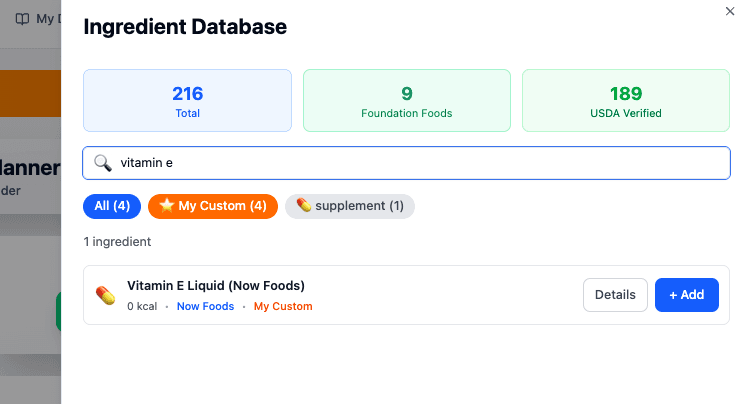
Your liquid ingredient is saved and ready to use in the Meal Planner. Search for it in the ingredient database and it will appear under My Custom.