Adding custom dry ingredients
RawPawIQ's ingredient database covers a wide range of foods, but if you're using a specific branded supplement or a product that isn't in the database yet, you can add it yourself. Once it's in, it behaves like any other ingredient in the Meal Planner.
In this tutorial we'll walk through adding Now Foods Organic Kelp Powder as an example, using the product label to fill in the details.
Open the Custom Ingredients page
From the top navigation, click My Data,
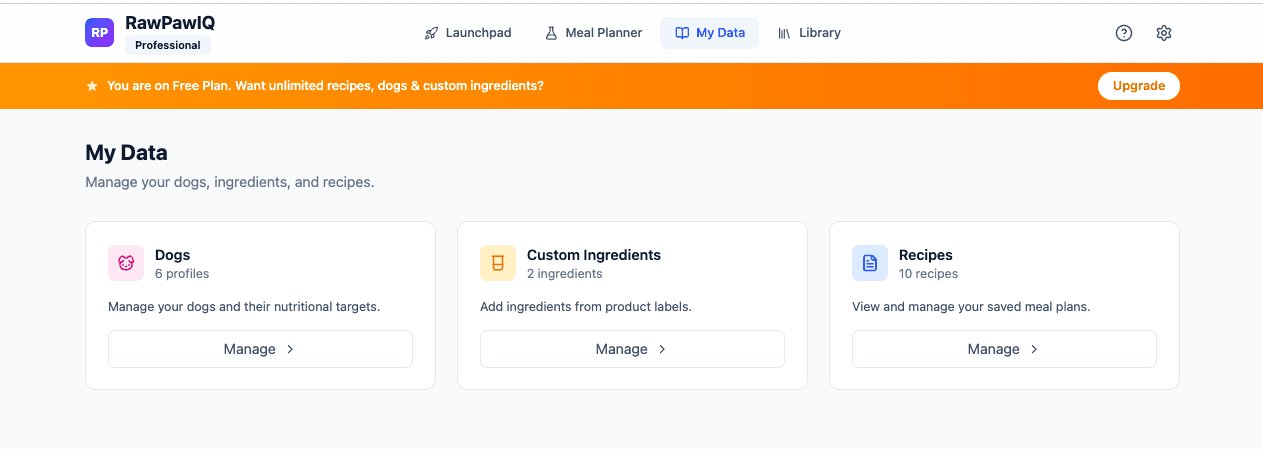
then select Custom Ingredients, or go directly to rawpawiq.com/my-ingredients.
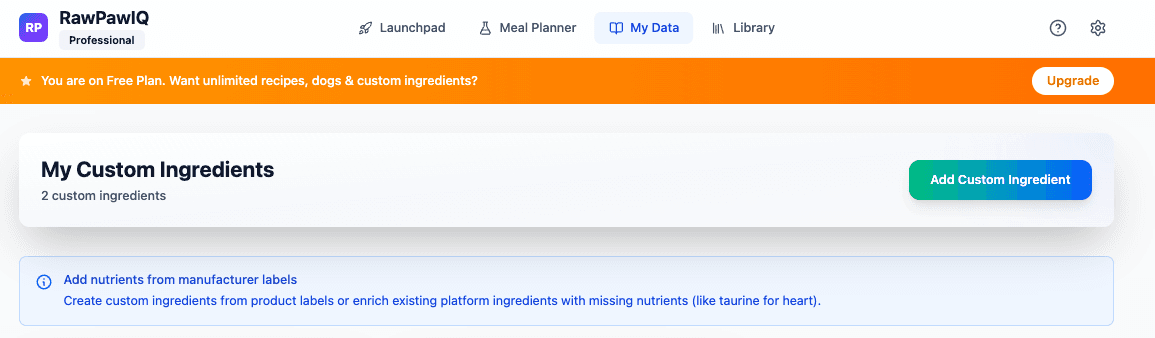
Click Add Custom Ingredient. This opens a 5-step wizard.
Step 1 — Source
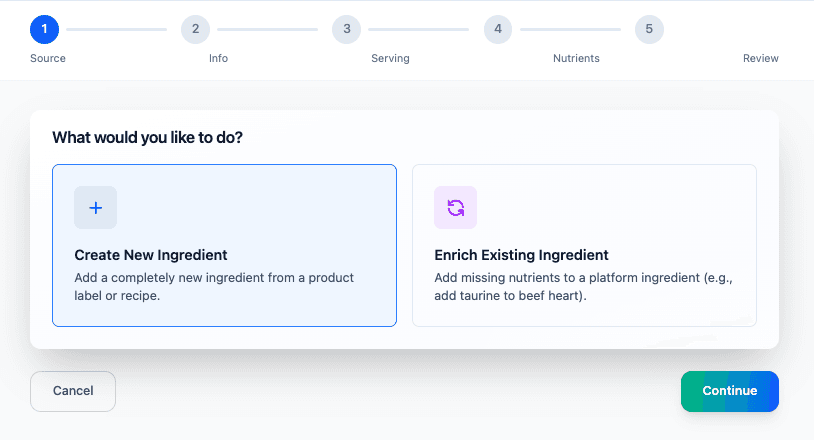
You'll be asked what you'd like to do. There are two options:
- Create New Ingredient — use this when you're adding a product that isn't in the database at all. This is what we'll use here.
- Enrich Existing Ingredient — use this when an ingredient already exists in the database but is missing specific nutrients. For example, adding taurine to beef heart.
Select Create New Ingredient and hit Continue.
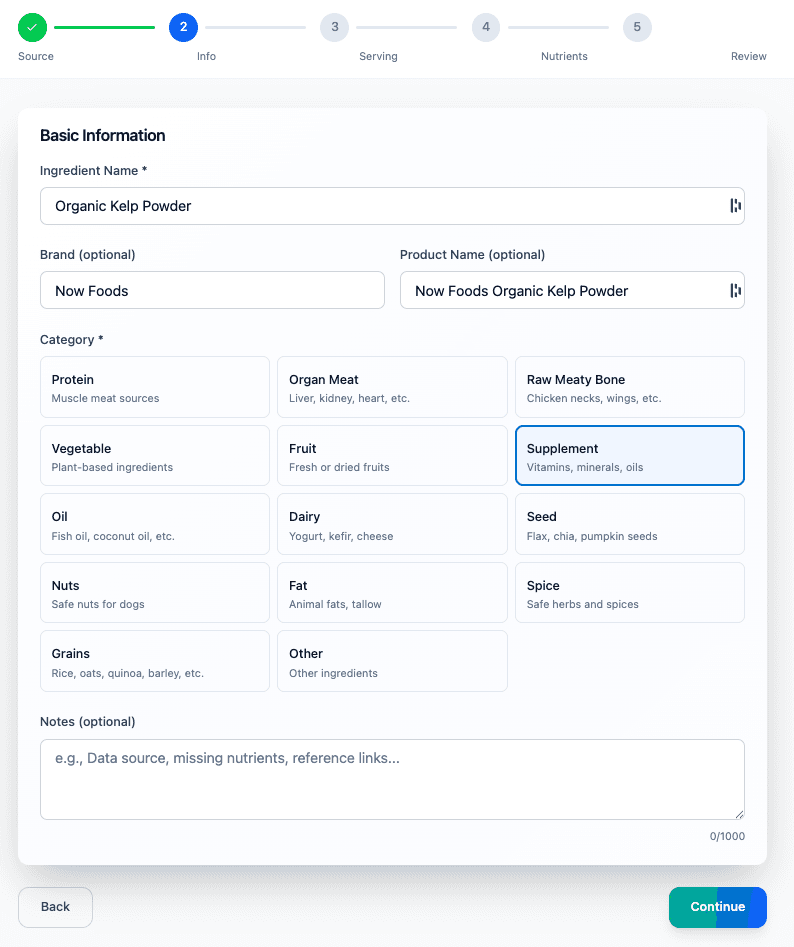
Step 2 — Info
Fill in the basic details:
- Ingredient Name — "Organic Kelp Powder"
- Brand (optional) — "Now Foods"
- Product Name (optional) — "Now Foods Organic Kelp Powder"
- Category — choose the category that best fits. The options are Protein, Organ Meat, Raw Meaty Bone, Vegetable, Fruit, Supplement, Oil, Dairy, Seed, Nuts, Fat, Spice, Grains, and Other. For kelp powder we'll select Supplement.
- Notes (optional) — useful for adding a data source, a link, or any other reference.
Hit Continue.
Step 3 — Serving
This is where you tell RawPawIQ how the product is measured. Pull out the product label for this step.
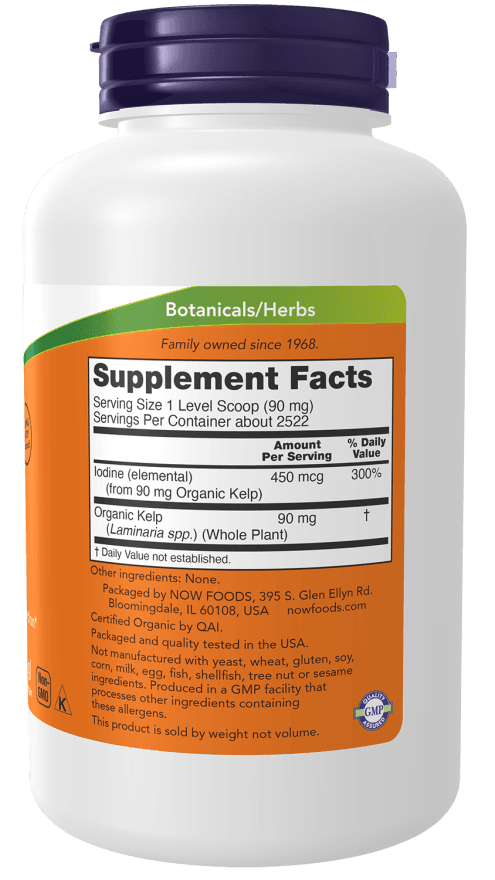
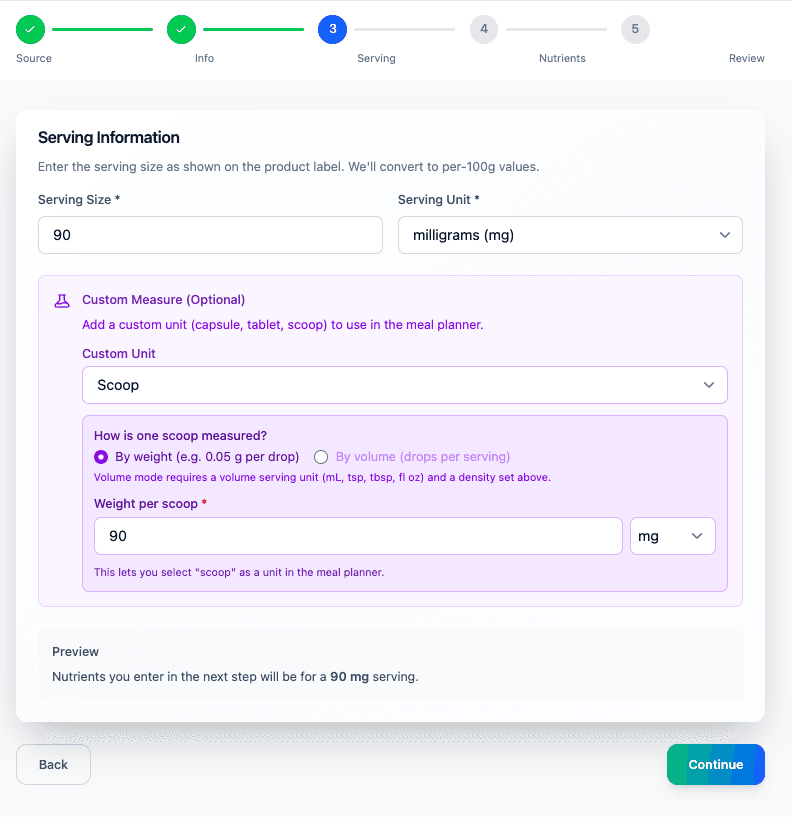
The label shows: Serving Size 1 Level Scoop (90 mg). Enter the following:
- Serving Size — 90
- Serving Unit — milligrams (mg)
Under Custom Measure, you can add a practical unit to use in the Meal Planner. This is optional but recommended for supplements you'll be scooping. Set the Custom Unit to Scoop, and enter 90 mg as the weight per scoop.
This means when you're building a meal, you can select "1 scoop" instead of typing 90 mg every time. The preview at the bottom will confirm: Nutrients you enter in the next step will be for a 90 mg serving.
Step 4 — Nutrients
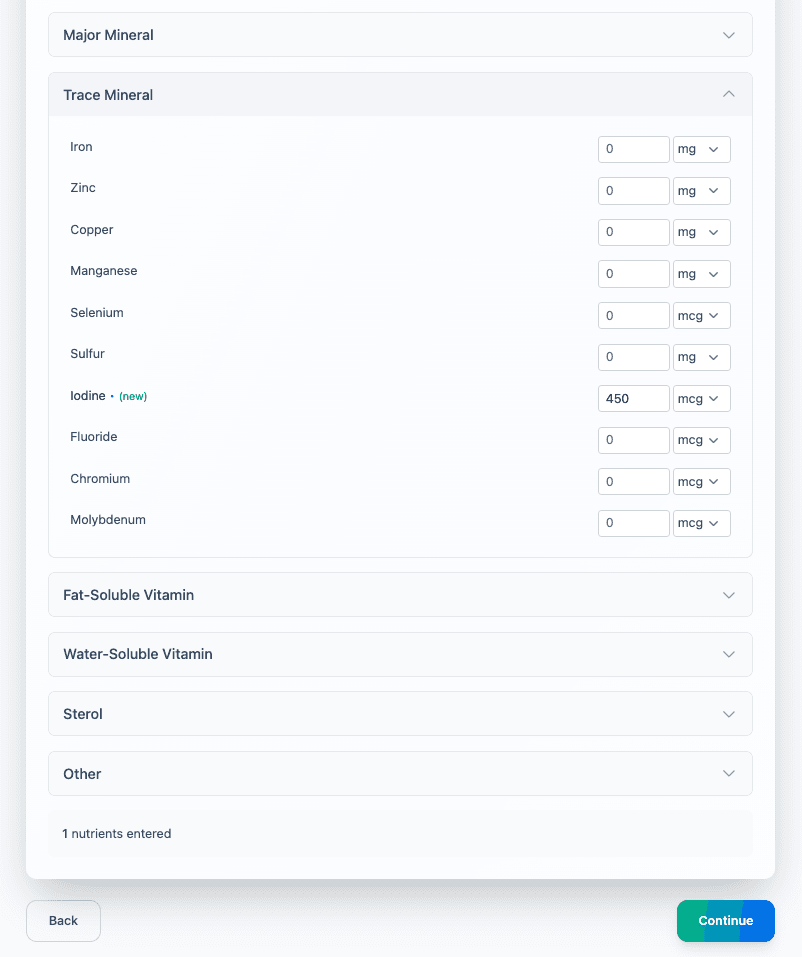
Now enter the nutrient values from the label. The nutrients are organised into categories: Major Mineral, Trace Mineral, Fat-Soluble Vitamin, Water-Soluble Vitamin, Sterol, and Other. Expand the relevant section and enter the values.
From the kelp powder label, the only nutrient listed is Iodine: 450 mcg per serving. Open the Trace Mineral section and enter 450 in the Iodine field.
Hit Continue.
Step 5 — Review
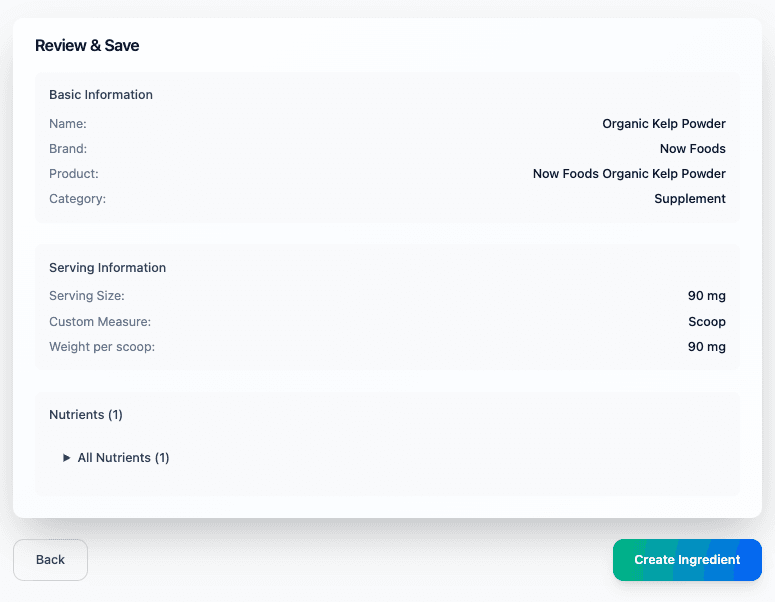
Check everything over before saving. You'll see a summary of the basic information, serving details, and the nutrients you entered.
If anything looks off, hit Back to correct it. If everything looks right, hit Create Ingredient.
Your ingredient is ready
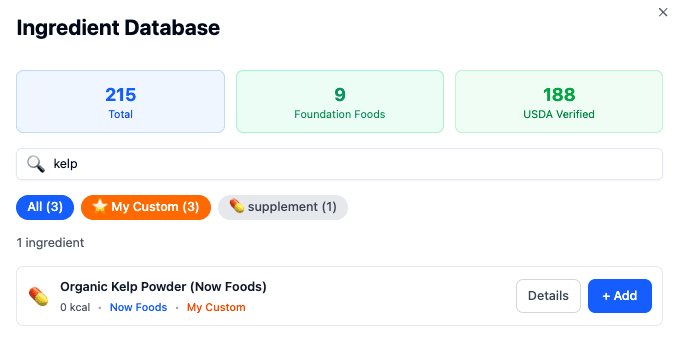
Your custom ingredient is now saved and ready to use. You can find it in the Meal Planner by searching for it in the ingredient database, where it will show up under My Custom alongside any other ingredients you've added.