Meal Planner overview
The Meal Planner is where everything comes together. This is where you build meals, add ingredients, and watch your nutritional coverage update in real time.
Select your dog
From the top navigation, click Meal Planner or go directly to rawpawiq.com/meal-planner.
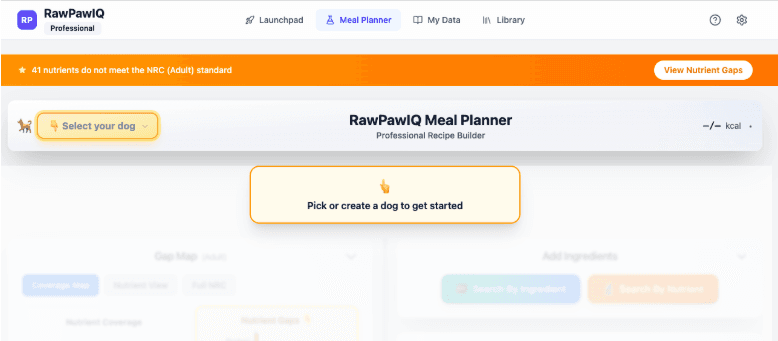
The first thing you need to do is select which dog you're building for. Without a dog selected, the planner won't open. Click the dog selector in the top left and choose your dog's profile.
Target Calories at the top
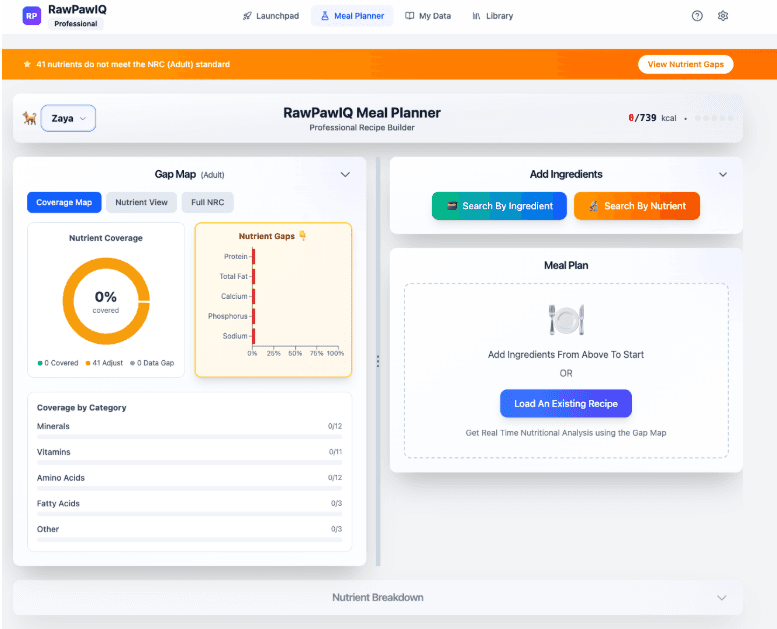
At the top you'll see your dog's name and their Target Calories, calculated directly from the profile you set up.
Adding ingredients
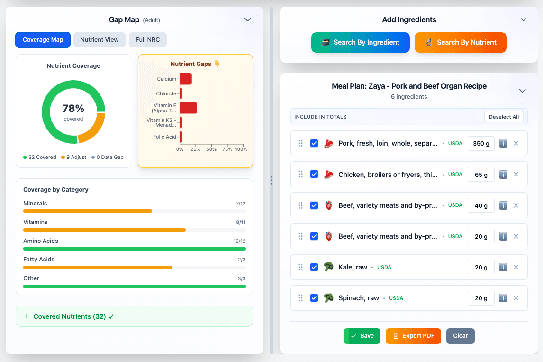
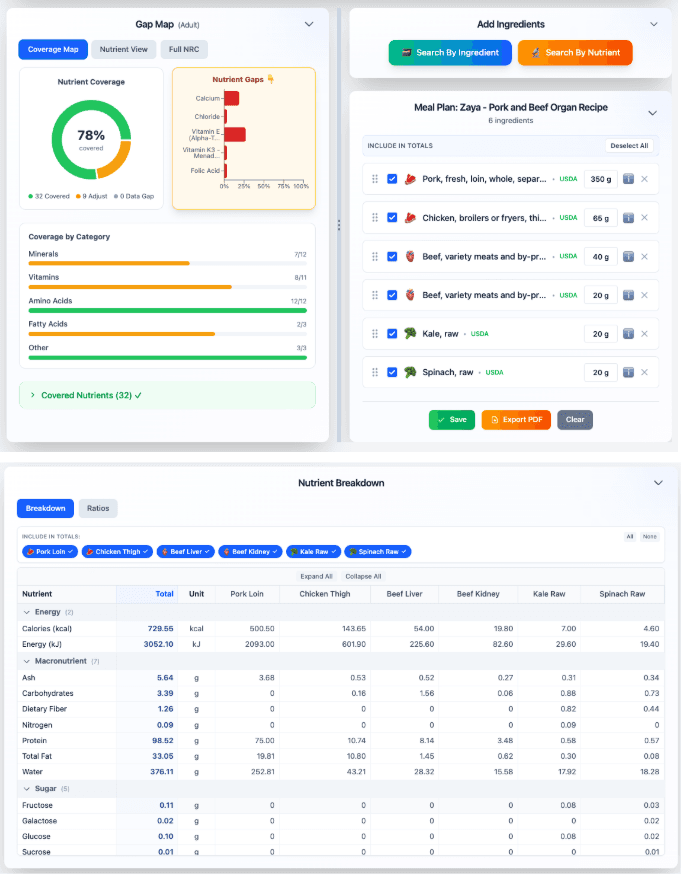
On the right side is the Add Ingredients area, along with your Meal Plan. You have two ways to search for ingredients.
Search by Ingredient
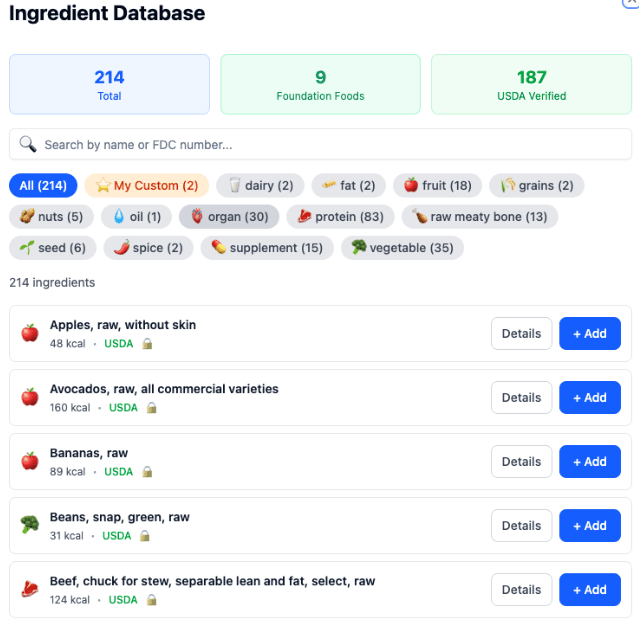
Opens the ingredient database. You'll find 200+ ingredients organised into categories like protein, organ, raw meaty bone, vegetable, supplement, and more. There's also a search bar if you know what you're looking for. Each ingredient shows its calorie count and data source. Hit + Add to bring it into your meal.
Search by Nutrient
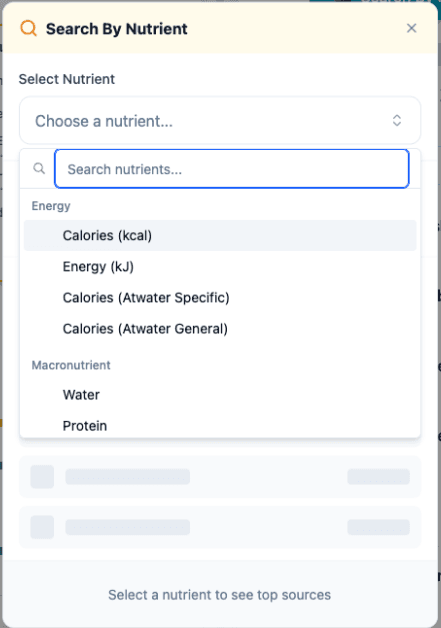
Lets you find ingredients that are high in a specific nutrient. Useful when the Gap Map is showing a shortfall and you want to know what to add to fix it.
The Gap Map
On the left side is the Gap Map. This is the core of RawPawIQ. It has three tabs.
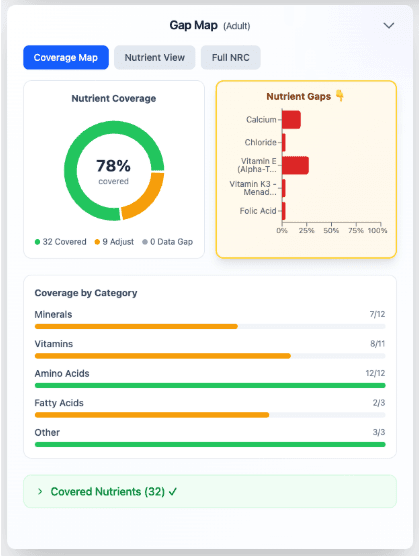
Coverage Map
Gives you a visual overview of your current nutrient coverage. The circle fills as your recipe gets closer to meeting NRC requirements, and the Nutrient Gaps chart shows where the biggest shortfalls are.
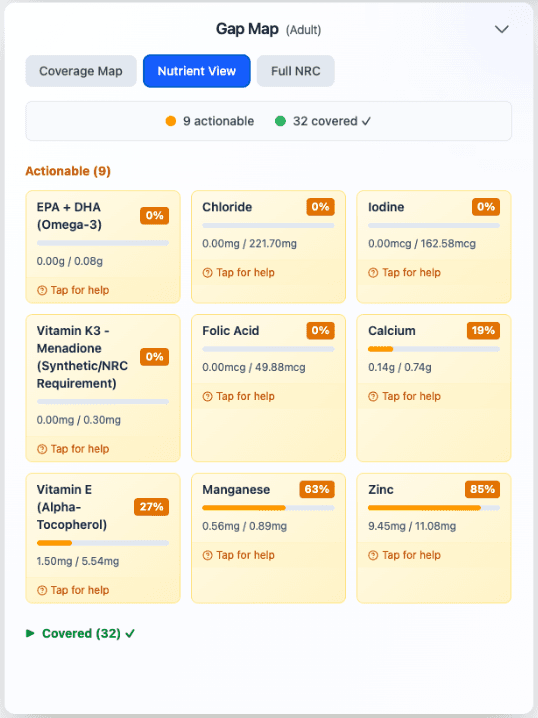
Nutrient View
Breaks things down per nutrient, so you can see exactly where each one stands against the NRC requirement for your dog. Here you can select nutrients and go deeper into balancing — we'll dive into that in a later tutorial.
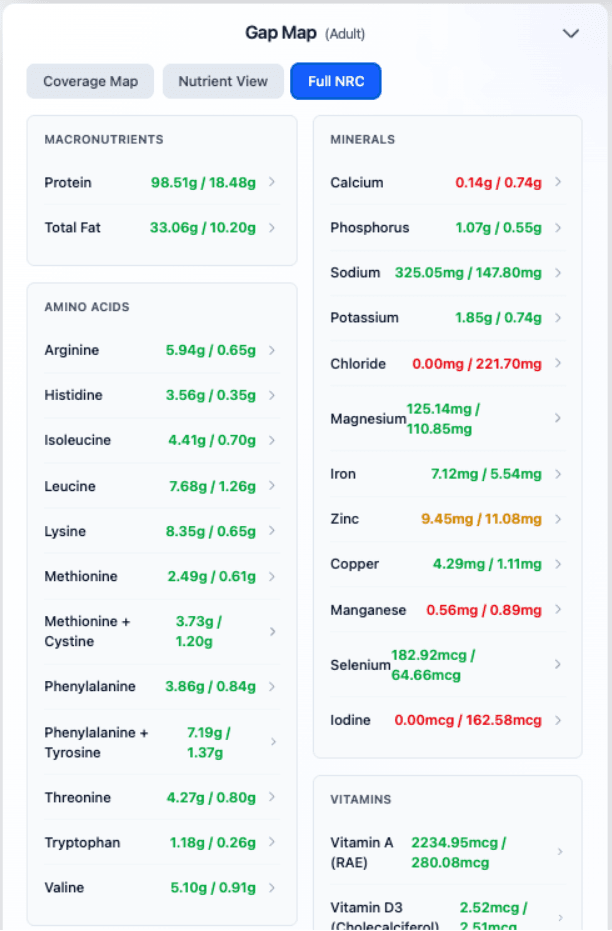
Full NRC
Shows the complete NRC requirements for your dog's life stage and profile, so you always have the full picture.
Live updates as you build
As you add ingredients, keep an eye on three things updating in real time: the calorie tracker at the top, the Gap Map on the left, and the Nutrient Breakdown section at the bottom of the page. These give you a live picture of how your meal is tracking against your dog's NRC requirements.
Save your recipe
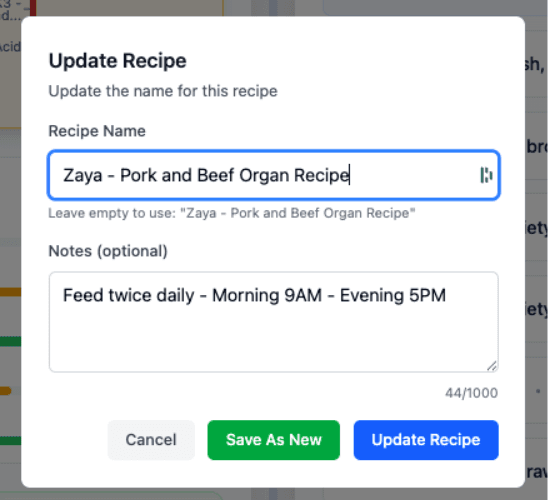
When you're done, save your recipe and you can come back to it at any time.
Want the underlying theory? What "Balanced" Means in the Reference Manual explains how coverage percentages are calculated against NRC 2006 standards.